Connect nstantcode to ChatGPT
Add nstantcode as a custom MCP plugin. Then build and publish apps from ChatGPT using your own AI plan.
nstantcode MCP URL
Open the Add menu in Plugins
Sign in to ChatGPT on the web and open Plugins. Choose Add at the top right, then Add custom MCP server.
Open ChatGPT Plugins ↗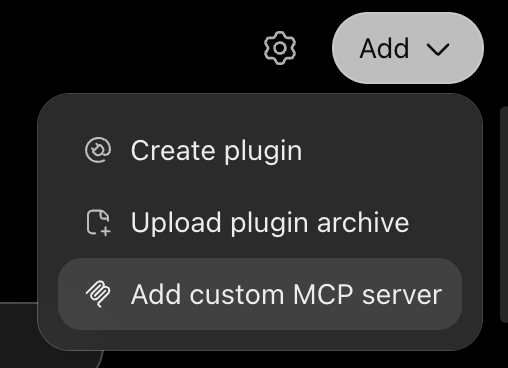
Choose Add custom MCP server from the Add menu. Fill in the server details
Enter nstantcode in Name. Under Connection, keep Server URL selected and paste the MCP URL you copied above. Choose OAuth for Authentication.
- Name
- nstantcode
- Connection
- Server URL
- Server URL
- Authentication
- OAuth
The icon and description are optional.
Review the confirmation in ChatGPT. When you are ready, tick I understand and want to continue, then choose Create as a plugin.
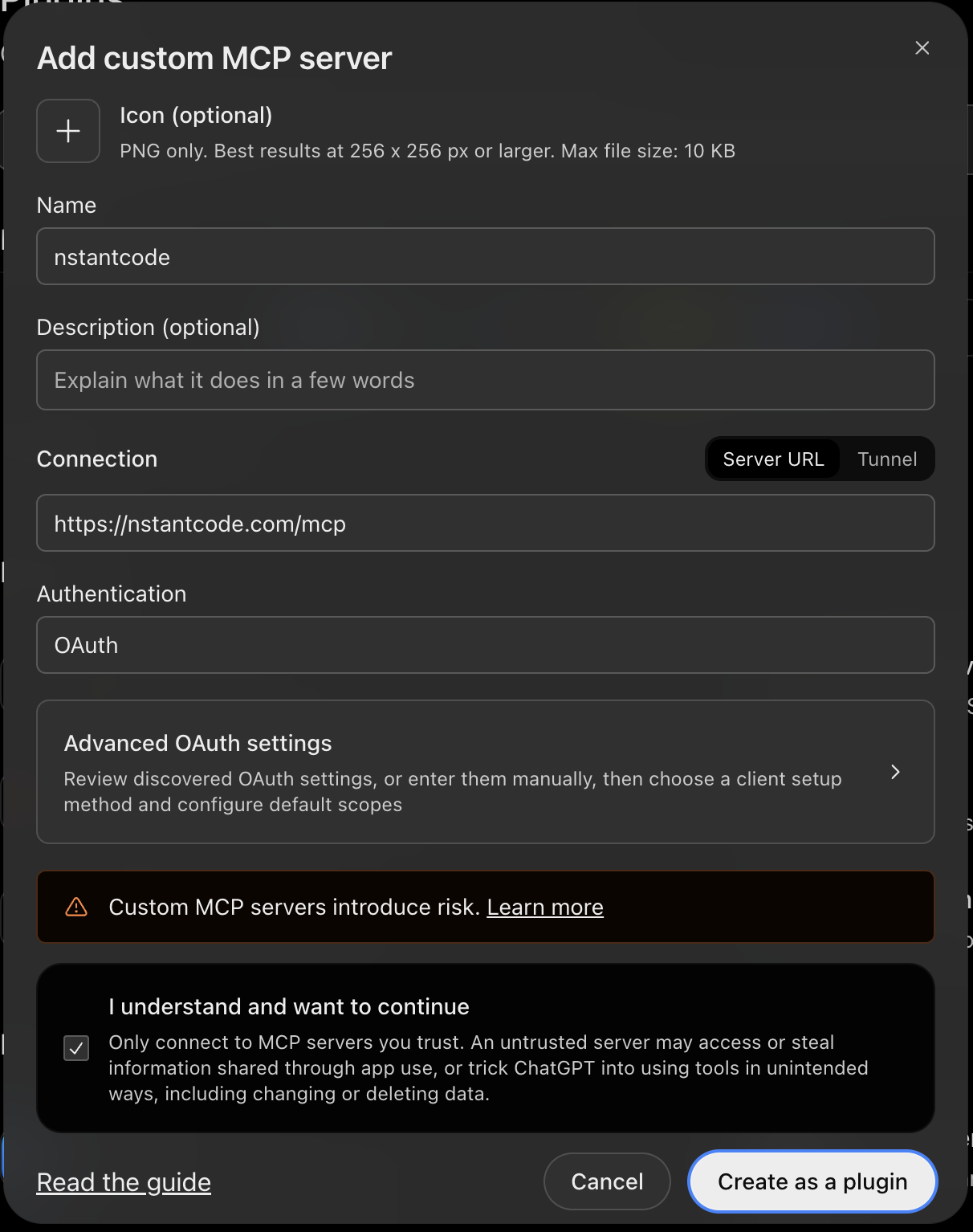
These are the exact values to enter. Select the image to see it full size. Install and connect nstantcode
Find nstantcode in your personal plugins. Open it and use the + button to install. When ChatGPT asks you to connect, sign in to your nstantcode account and approve project access.
You can create a free nstantcode account on the sign-in screen.
Start your first app
Return to ChatGPT, switch to Work and start a chat. Type @, select nstantcode, and describe what you want to build.
Try this in your ChatGPT Work chat
Open ChatGPT ↗